Passwords alone no longer keep business accounts safe. Multi-factor authentication (MFA) is one of the simplest and most effective ways to stop attackers getting into your email, files and systems, even when a password has been stolen. This guide explains what MFA is, how it works, which methods are strongest and how to roll it out across your business.
What is multi-factor authentication?
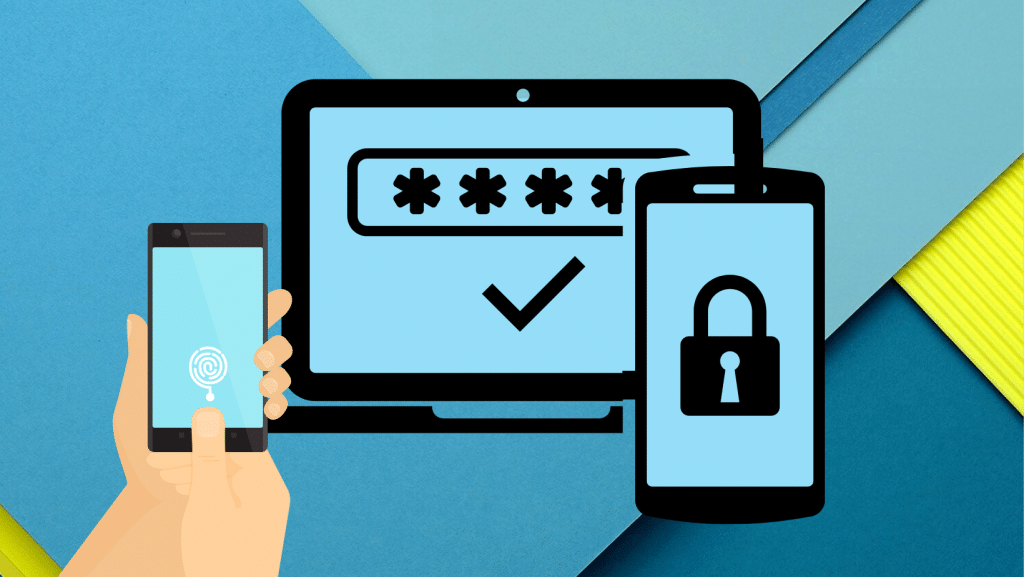
Multi-factor authentication (MFA) is a security check that asks you to prove who you are in more than one way before you can sign in. As well as your password, you are asked for a second piece of evidence, such as a code from an app on your phone, a tap on a security key or a fingerprint.
The idea is simple. A criminal might steal or guess your password, but they are very unlikely to also have your phone or your fingerprint. Without that second factor, the stolen password is useless to them.
You may also hear MFA called two-factor authentication (2FA) or two-step verification. 2FA is simply MFA with exactly two factors, and it is the form most businesses use day to day.
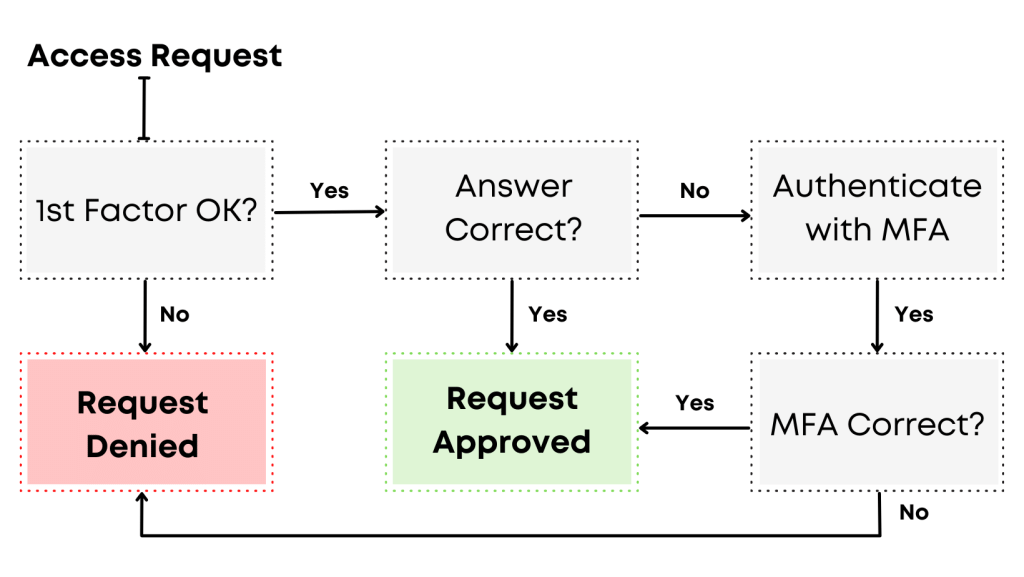
Why passwords are no longer enough
Almost everything at work is protected by a password, and that is exactly why criminals target them. Stolen login details are consistently one of the most common ways attackers get into business systems. Passwords are exposed in several ways:
- Phishing: a convincing email or fake login page tricks someone into typing their password into a site the attacker controls.
- Password reuse: people often use the same password for several accounts, so a breach at one website gives attackers the key to others, including work accounts.
- Data breaches: billions of email addresses and passwords from past breaches are traded online, ready to be tried against business logins.
- Guessing and brute force: automated tools try common passwords against thousands of accounts at once.
- Sharing: logins shared between colleagues, or written down, are easily misused.
Once an attacker has a working password for a Microsoft 365 account, they can read email, send convincing invoice fraud messages to your customers, download files and use the account as a stepping stone for a wider attack. We cover this in more detail in why passwords alone won’t cut it anymore.
How does MFA work?
MFA works by combining factors from different categories. Using two passwords is not MFA, because both are the same type of evidence. The three categories are:
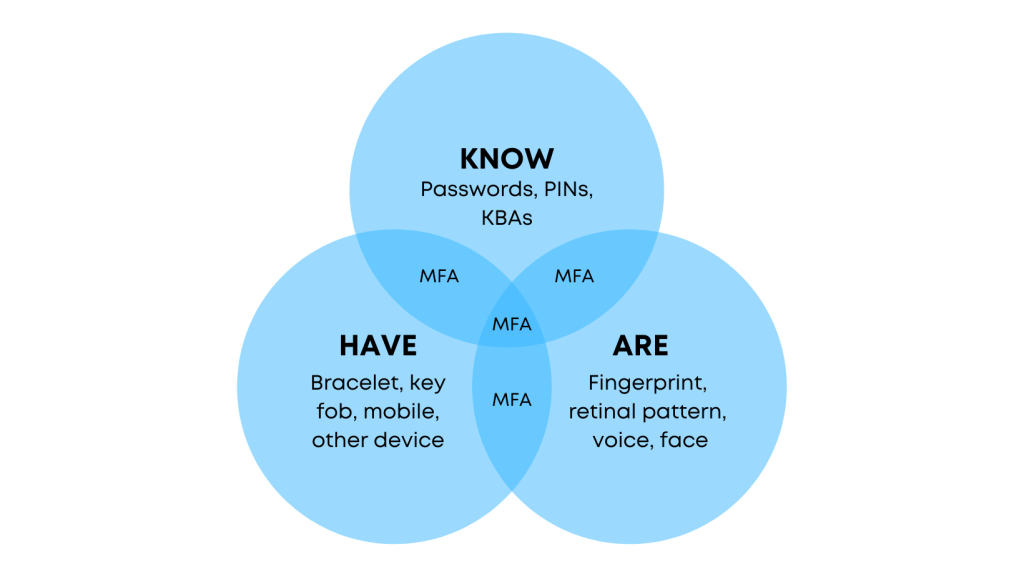
Something you know
A password, PIN or passphrase. This is the factor most likely to be stolen or guessed, which is why it should never be the only one. Security questions such as “what is your mother’s maiden name?” also fall into this category, and the answers can often be found on social media.
Something you have
A physical item that only you should hold, such as a smartphone with an authenticator app, a hardware security key or a smart card. Because an attacker would need to physically take the item, this factor blocks the vast majority of remote attacks.
Something you are
Biometrics such as a fingerprint or face scan. Once reserved for high-security environments, biometrics are now built into most laptops and phones through features such as Windows Hello and Face ID, making them a convenient everyday option.
A typical Microsoft 365 sign-in with MFA looks like this:
- Open Outlook, Teams or a browser and enter your work email address and password.
- A prompt appears asking you to verify your identity.
- Your phone shows a notification in the Microsoft Authenticator app, along with a number to match against the one on your screen.
- You enter the number and approve the sign-in, usually with your fingerprint or face.
- You are signed in. On a trusted device, you will not be asked every time.
The benefits of MFA for your business
It stops most account takeovers
Microsoft reports that MFA blocks more than 99% of automated attacks on accounts. Even if a password is exposed in a breach, the attacker is stopped at the second step.
It protects against phishing
If someone is tricked into entering their password on a fake page, the attacker still cannot sign in without the second factor. Combined with email security and staff awareness training, MFA greatly reduces the damage a single click can do.
It adds a layer of defence
Good security never relies on one barrier. MFA sits alongside firewalls, malware protection and regular updates, so that if one control fails, another is still in place.
It helps you meet compliance requirements
MFA is now expected by insurers, auditors and many customers. Cyber insurance policies commonly ask whether MFA is enabled, and it is a firm requirement for Cyber Essentials certification (see below). It also supports your obligations under UK GDPR to protect personal data.
It is quick and inexpensive
MFA is built into Microsoft 365, Google Workspace and most business applications at no extra cost. For most users, setup takes a few minutes and the daily impact is a couple of seconds.
Types of MFA, from weakest to strongest
Not all MFA methods offer the same protection. Attackers have adapted, so it is worth choosing the strongest option your systems support.
SMS text and phone call codes
Far better than no MFA, but the weakest option. Codes can be intercepted through SIM-swap fraud, where a criminal persuades a mobile network to move your number to their SIM card. Use SMS only where nothing stronger is available.
Authenticator app codes
Apps such as Microsoft Authenticator generate a fresh six-digit code every 30 seconds on your phone. These codes cannot be intercepted on the mobile network, making them a solid step up from SMS.
Push notifications with number matching
Instead of typing a code, you approve a notification on your phone and type the number shown on your screen. Number matching stops “MFA fatigue” attacks, where criminals send repeated prompts hoping someone taps approve just to make them stop. Microsoft Authenticator now uses number matching by default.
Passkeys, security keys and Windows Hello for Business
These are known as phishing-resistant MFA. They use cryptography tied to your device and to the genuine website, so they cannot be tricked into working on a fake login page. This is the gold standard, and it is particularly worth considering for directors, finance staff and IT administrators.
MFA and Cyber Essentials
MFA has long been part of Cyber Essentials, but the rules tightened from 27 April 2026. Under version 3.3 of the requirements and the Danzell question set, MFA must be switched on for every cloud service in scope wherever the service offers it. That applies whether MFA is free, included in your subscription, provided through another service or available as a paid option. If it is available and not enabled, the assessment is an automatic fail.
Cloud services can no longer be left out of scope either, so services such as Microsoft 365, accounting software, CRM systems and file sharing platforms all need MFA in place. If you are preparing for certification or renewal, our Cyber Essentials checklist walks through what assessors look for.
Where should you use MFA?
The short answer is everywhere that offers it, starting with the accounts that would cause the most harm if compromised:
- Email and Microsoft 365 or Google Workspace: the most targeted accounts in any business.
- Admin accounts: anyone with administrator rights to your systems, firewalls or cloud services. Microsoft now requires MFA to sign in to its own admin portals.
- Remote access: VPNs, remote desktop and any system staff use from home.
- Finance and banking: online banking, payroll and accounting software such as Xero or Sage.
- Business applications: CRM, practice management, HR and file sharing services.
- Password managers: the vault that holds everything else.
How to roll out MFA across your business
Switching MFA on is technically simple. Rolling it out without disruption takes a little planning.
- List your systems. Make an inventory of every cloud service and application your team uses, and check which support MFA.
- Choose your methods. Standardise on an authenticator app with number matching for most staff, and consider phishing-resistant options for high-risk roles.
- Tell your team first. Explain why MFA is being introduced and what will change. A short guide and a set date reduce support calls and resistance.
- Start with admins and high-risk users. Protect the accounts that matter most, then extend to everyone.
- Use Conditional Access where available. With Microsoft 365 Business Premium, you can require MFA based on risk, location or device, so trusted office devices prompt less often.
- Plan for lost phones. Set up backup methods and a clear process for resetting MFA when someone changes or loses their device.
- Check and review. Confirm every account is enrolled, block legacy sign-in methods that bypass MFA, and review regularly as staff join and leave.
Frequently asked questions
Is MFA the same as two-factor authentication?
Two-factor authentication (2FA) is a type of MFA that uses exactly two factors. MFA can use two or more. In practice, most businesses use the terms interchangeably.
Will MFA slow my team down?
Very little. Most sign-ins take a couple of extra seconds, and on trusted devices staff are not prompted every time. The disruption of a compromised account is far greater.
What happens if someone loses their phone?
Your IT team or provider can reset their MFA and register a new device. Setting up a backup method in advance, such as a second device or a security key, makes this quicker.
Can MFA be bypassed?
Basic methods can be targeted through SIM swapping, MFA fatigue or sophisticated phishing kits. Number matching and phishing-resistant methods such as passkeys close most of these gaps, which is why the type of MFA matters.
Is MFA required for Cyber Essentials?
Yes. Since 27 April 2026, MFA must be enabled on all in-scope cloud services where it is available, or the assessment will fail.
Does MFA cost extra?
Usually not. MFA is included in Microsoft 365, Google Workspace and most business applications. Advanced features such as Conditional Access are included in Microsoft 365 Business Premium.
How Information Solutions can help
We help businesses across Shropshire, Wales and the Midlands roll out MFA properly, from auditing which systems need it to configuring Microsoft 365 security, supporting staff through the change and keeping everything covered as your team grows. MFA is a core part of our managed cyber security service and of preparing clients for Cyber Essentials.
Not sure whether MFA is switched on everywhere it should be? Book a free IT review and we will check for you.