Phishing is still the most common way cyber attacks get into a business, and the warning signs have changed. AI now writes fluent, convincing emails, so the old advice of looking for spelling mistakes is no longer enough. These are the phishing red flags your team should know in 2026, the newer tricks to watch for, including fake CAPTCHA “ClickFix” attacks, and what to do when something looks wrong.
Why phishing is harder to spot in 2026
For years, the advice was simple: look for the spelling mistakes, the strange logo, the sender address that didn’t quite match. Those signs still appear, but today’s phishing emails are often written with the help of AI. They read naturally, use the right tone for the business they’re impersonating and arrive at exactly the moment you’re too busy to look twice.
That means the most reliable red flags are no longer about how a message looks. They’re about what it’s asking you to do. The five below work whether the message arrives by email, text, Teams, WhatsApp or phone.
The 5 phishing red flags
1. Urgency and pressure
Phishing messages are designed to make you act before you think. “This invoice is overdue”, “your account will be suspended today” and “the director needs this transferred before 3pm” are all classic pressure tactics. A genuine, well-run business rarely needs an instant, unquestioned response. If a message is pushing you to skip your normal checks, that’s the message to slow down on, not speed up for.
2. A sender that doesn’t quite line up
Look past the display name and check the actual email address. Watch for small changes such as info-so1.co.uk instead of info-sol.co.uk, a personal Gmail address claiming to be a supplier, or a reply-to address that goes somewhere completely different. A message that appears to come from a colleague but replies to an outside domain is one of the most reliable signs something is wrong.
Be aware that attackers also send from genuine accounts they have already compromised. If a known contact suddenly sends something out of character, treat it with the same care.
3. Requests to bypass the normal process
If someone asks you to change a supplier’s bank details, pay by gift card, share a password or process a request “off the usual system, just this once”, treat it as a red flag however convincing it sounds. Attackers rely on people not wanting to question a request that seems to come from someone senior.
A quick phone call to confirm, using a number you already have on file rather than one in the message, takes a minute and closes off this entire category of attack.
4. Links and attachments that don’t match what you expect
Hover over a link without clicking to see where it really goes, and check the domain carefully. Be particularly wary of:
- login pages for Microsoft 365, banks or delivery companies reached from an email link
- unexpected invoices, delivery notes, voicemails or “shared documents”
- attachments that ask you to enable macros or editing to “view the content”
- file sharing links from people you don’t normally exchange files with
If in doubt, go to the website directly or open the shared file from within your own OneDrive or SharePoint, rather than through the link.
5. Messages designed to trigger fear or excitement
Fake missed deliveries, prize wins, HMRC refunds, bank fraud warnings and “unusual sign-in” alerts all work by triggering an emotional response that overrides careful thinking. The more alarming or exciting a message feels, the more reason there is to pause.
How to spot a phishing email: real examples
Here’s how those red flags look in practice. Both examples appear genuine at a glance, with the right branding and a layout similar to real automated emails, but small details give them away.
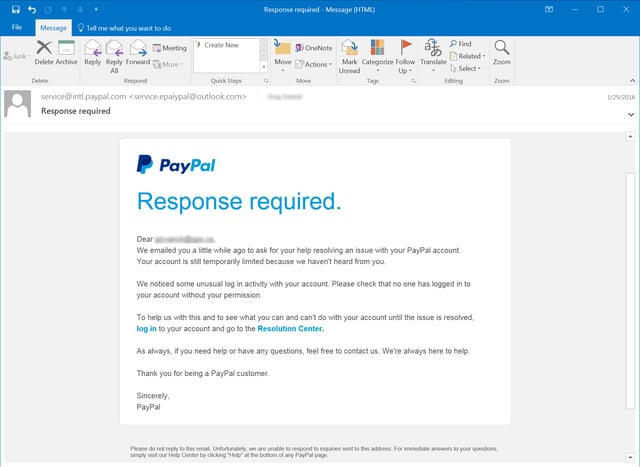
In the PayPal example, the sender’s address doesn’t match PayPal’s real domain, the message creates urgency about a problem with your account, and the button leads to a fake login page designed to capture your details.
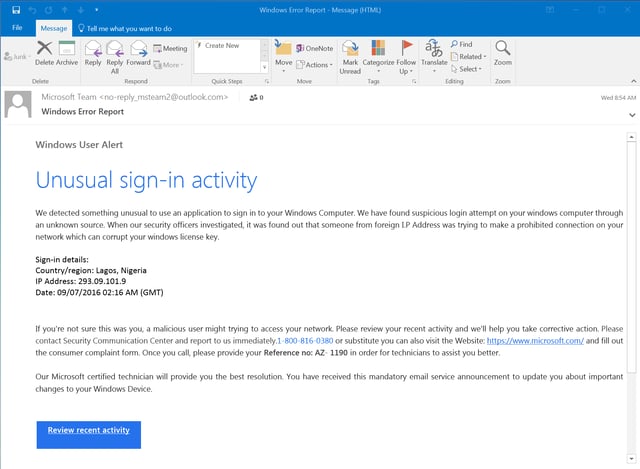
The Microsoft example asks you to call a vague support number. Microsoft doesn’t contact customers this way, and calling connects you to scammers who will try to take remote control of your computer or take payment.
Other giveaways to look for:
- Stretched, blurry or badly aligned logos and buttons. Large organisations use consistent, professionally designed emails.
- Unexpected attachments, especially .html, .js, .zip or Office files that ask you to enable editing or macros.
- Offers that are too good to be true, such as prizes, refunds or free items, often timed around seasonal events.
- Messages from known contacts that feel out of character. Their account may have been compromised and used to spread the attack.
Newer phishing tricks to watch for
Fake CAPTCHAs and “fix it” prompts (ClickFix)
ClickFix is one of the fastest-growing attack techniques since it emerged in 2024. You land on a web page, often from a search result, an advert or a link in an email, and see what looks like a normal “verify you are human” check or an error message. Instead of ticking a box, it asks you to follow a few steps, typically:
- press the Windows key and R together
- press Ctrl and V to paste
- press Enter
Behind the scenes, the page has already copied a malicious command to your clipboard. Following the steps runs it on your own computer, which can install password-stealing malware or remote access tools. Because you ran the command yourself, it can slip past some security tools.
Since late 2025, some ClickFix campaigns have used finger.exe, an old built-in Windows tool, to quietly download the next stage of the attack. Seeing “finger” in a command you’ve been asked to paste is a strong sign of this attack.
The red flag is simple: no genuine website, CAPTCHA or fix will ever ask you to paste and run something in the Run box, Command Prompt, PowerShell or Terminal. If you see this, close the page and tell your IT support team, especially if you’ve already followed the steps.
QR code phishing
Some phishing emails now contain a QR code instead of a link, often claiming you need to “re-verify” your account or review a document. Scanning it with your phone moves the attack onto a device that may have less protection. Treat unexpected QR codes in emails with the same suspicion as unexpected links.
Fake sign-in pages and MFA prompts
Sophisticated phishing kits can show a perfect copy of the Microsoft 365 sign-in page and capture your password and MFA code in real time. Others send repeated MFA approval requests, hoping you’ll tap “approve” to make them stop. Never approve a sign-in you didn’t start. Multi-factor authentication with number matching makes these attacks much harder.
AI-generated calls and voices
AI tools can now convincingly clone a voice from a short recording, leading to phone calls and voice notes that sound exactly like a colleague or director asking for an urgent payment or password reset. The same rule applies: if a request is urgent, unusual or asks you to bypass a normal process, verify it through a separate channel before acting.
Quick phishing checklist for your team
- Is the message pushing me to act quickly?
- Does the sender’s real email address match who they claim to be?
- Am I being asked to change bank details, share a password or skip a normal check?
- Does the link go where I expect, and was I expecting this attachment?
- Is a website asking me to paste something into Windows or approve a sign-in I didn’t start?
- If I’m unsure, have I checked with the person or my IT team using contact details I already have?
What to do when something looks off
Report it, don’t just delete it. A quiet delete means your IT team and colleagues never find out a phishing attempt is doing the rounds, and someone else may not spot the same red flags you did. Forward it to your IT support team, or use the “report phishing” button if one is set up.
If you’ve already clicked or followed the steps, tell IT straight away. Don’t feel embarrassed: speed matters far more than blame. Depending on what happened, your IT team may disconnect the device from the network, reset your password, revoke active sign-ins and check for anything that has been installed.
For more examples of phishing emails, see the real examples above, and our tips to stay safe online.
Frequently asked questions
What is the most common phishing red flag?
Urgency. Almost every phishing message tries to make you act quickly so you don’t stop to check. If a message is pressuring you, slow down and verify it.
What is a ClickFix attack?
ClickFix is a social engineering technique where a fake CAPTCHA or error message tricks you into pasting and running a malicious command on your own computer, usually through the Windows Run box. It is used to install password-stealing malware and remote access tools.
Why is finger.exe used in ClickFix attacks?
Finger.exe is a decades-old tool that is still built into Windows. Attackers use it to fetch the next part of the attack from their own server, because its traffic is rarely monitored. Most businesses have no need for it, so blocking it is a sensible precaution.
Can email filtering stop all phishing?
Good email security blocks the large majority of phishing, but no filter catches everything. That’s why staff awareness, MFA and a clear reporting process are just as important.
What should I do if I entered my password on a phishing page?
Change your password immediately from a trusted device, tell your IT team and check that MFA is switched on. Your IT team can sign out any active sessions and look for suspicious activity such as new email forwarding rules.
How Information Solutions can help
We provide email security and staff awareness training that filters out a large proportion of phishing before it reaches an inbox, and simulated phishing exercises that show, safely, how your team responds to realistic attacks. Combined with managed cyber security, including endpoint protection that can block techniques such as ClickFix, it gives your business layered protection against the most common way attacks begin.
Want to know how well your team would spot a phishing attempt? Get in touch with our team.